This blog examines how applying LLM-powered automation to policy management helps security and networking teams build, audit, and optimize network policies more efficiently, using an example from the Versa MCP Server.
Such automation integrates into existing workflows, offering real-time access to current configurations and intelligent policy insights – all without requiring teams to switch tools.
From MCP Server to SAC policy intelligence
By securely exposing Versa APIs – an integration that can also be leveraged with on-prem LLMs – the MCP Server enables LLM-powered agents to query Versa deployments in real time, providing dynamic access to network and security data. For NetOps and SecOps teams, this means faster incident resolution, greater visibility into configurations and outcomes, and significantly less manual overhead.
Building on the foundation of the MCP server, below I cover how it can be used to access, configure, and enforce secure access client policies more intelligently and effectively.
The MCP server tackles a persistent operational challenge: fragmented policy management spread across dashboards, consoles, and chat interfaces. By centralizing policy visibility and applying LLM-powered analysis, it enables engineers to build, validate, and refine rules with greater speed and confidence.
Key capabilities for managing Secure Access Client (SAC) rules include:
- Detect duplicate or conflicting SAC rules to prevent policy sprawl.
- Identifying misconfigurations, including failed device posture checks and security risks, using LLM-powered insights
- Querying SAC rule configurations for user-level mappings, device posture checks, and operating system compatibility requirements.
- Align policies with enterprise security standards using AI-driven validation.
Walkthrough
Step 1: Set up the Versa MCP server
We begin by cloning the MCP server repository and following the setup instructions in the README.md.
Once installed, check or modify the claude_desktop_config.json file for Claude Desktop to ensure it includes the necessary Versa MCP servers/tools. A sample is shown below:
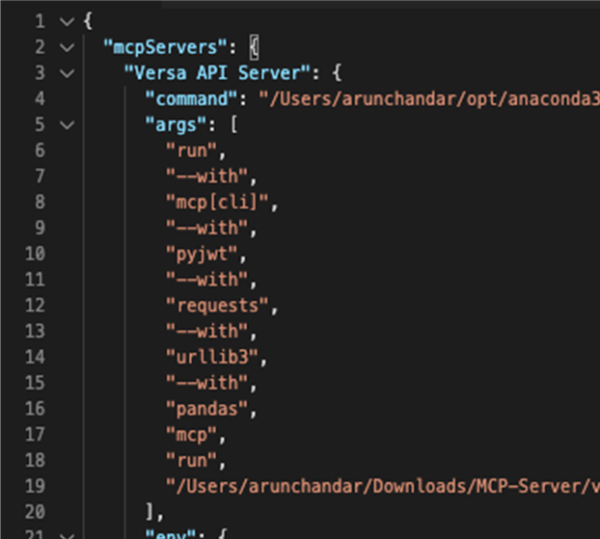
Note:
- Modify the command field to match the Python location on your system. The example uses Python with uv.
- Modify the run field to point to the correct .py file for the MCP server/tool on your local system (for STDIO mode) or follow the setup for SSE mode.
- Replace the following environment variables with values from your infrastructure
- DIRECTOR_URL
- VN_USERNAME
- VN_PASSWORD
- VN_CLIENT_SECRET (generate this from the Director)
- VN_CLIENT_ID (generate this from the Director)
Once complete, proceed to Step 2.
Step 2: Verify Claude is connected to Versa MCP tools
Next, launch Claude Desktop and confirm that it successfully connects to the MCP Server. Upon startup, the configuration panel displays all active integrations – including the Versa API Server if the connection is established.
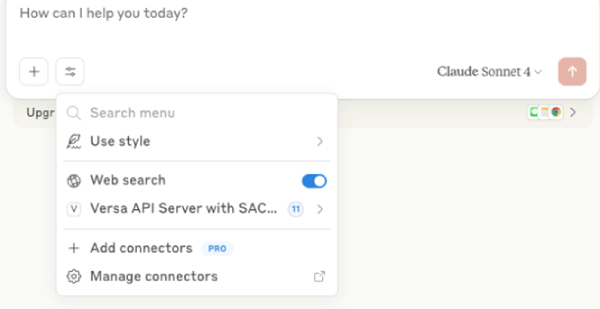
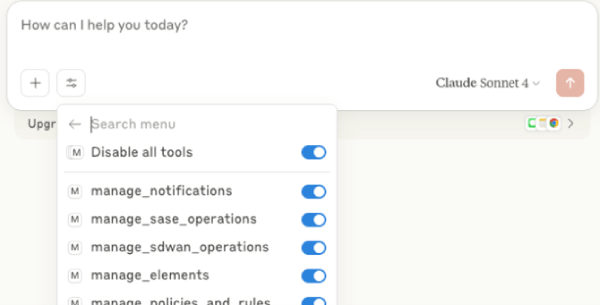
From this panel, available tools can be reviewed and toggled on or off as needed.
Step 3: Create a SAC rule for a specific user
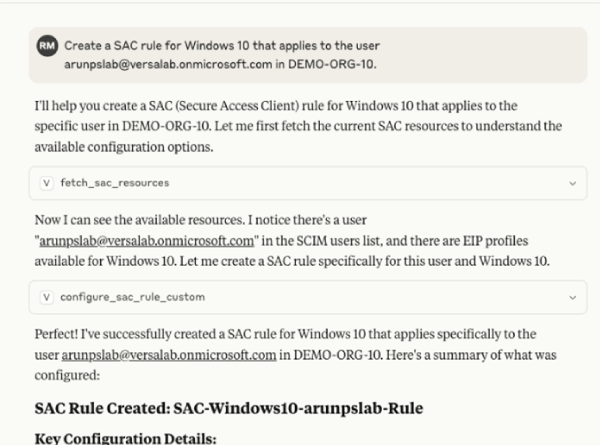
Next, we use Claude Desktop to define a new Secure Access Client (SAC) rule. In this case, the goal is to create a policy that applies specifically to Windows 10 devices used by a specific user.
Step 4: Verify the rule in Versa Concerto
To confirm the rule was applied correctly, log into Versa Concerto and navigate to the SAC policy configuration page. There, we verify that the new rule – scoped to Windows 10 and the specific user – appears in the active policy list.

Step 5: Delete the SAC rule
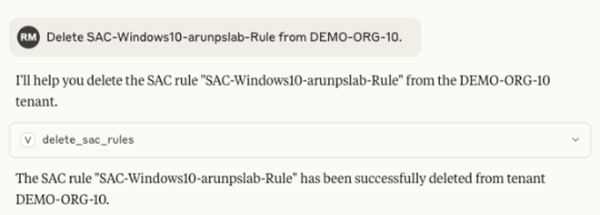
To remove the previously created SAC rule, we issue a prompt in Claude Desktop requesting its deletion.
Final thoughts
It allows teams to build cleaner, more secure policies – faster and with significantly less manual effort. For a full walkthrough of the tool in action, including a complete scenario demonstrated here, check out the demo video here.
Learn more about SASE use cases for MCP servers here.

Arun Chandar designs SD-WAN and SASE deployments for complex enterprise environments and works on bringing AI-powered automation into network and security policy management. Before joining Versa, he held engineering roles at Tata Communications covering network, security, SD-WAN, and cloud services. His writing focuses on how security and networking teams can build, audit, and optimize policies more efficiently using agentic AI tools.